Todos los periódicos y la radio, en unoEscrito por IA a partir de Hacker News · Cómo se hace
Hacker News
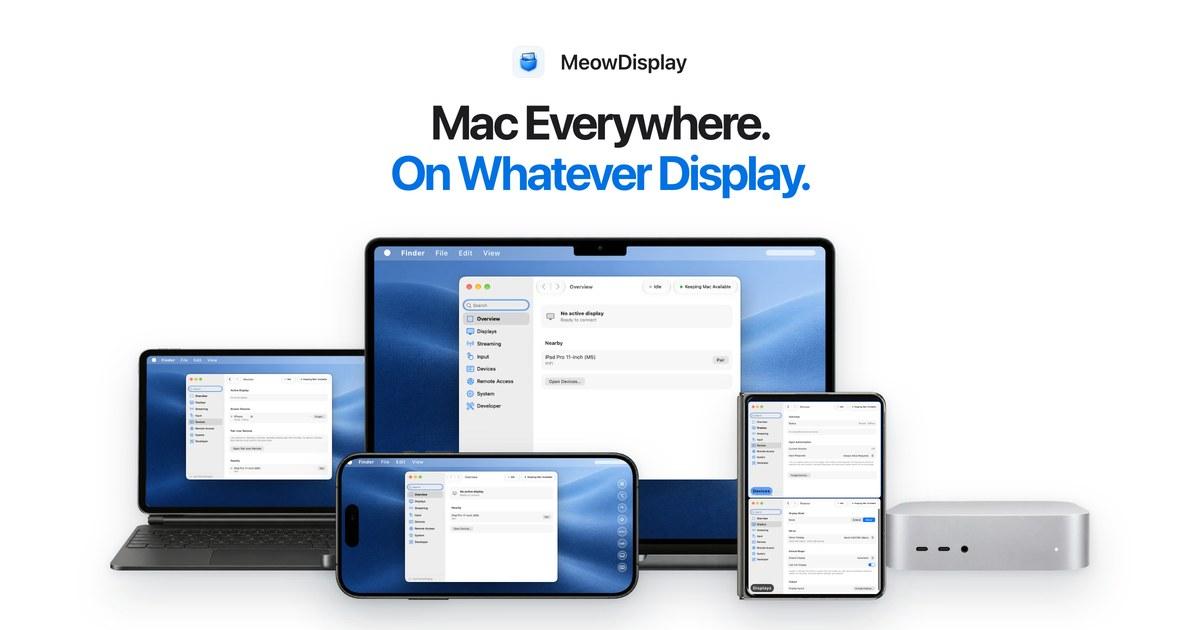
MeowDisplay is free and open source on Mac, iPhone and iPad. Android is in closed testing. Get MeowDisplay › Explore the features ›
Mac Everywhere.On Whatever Display.
Turn an iPhone, iPad, Android device or another Mac into a display for your Mac. Mirror it, extend it, and control it with touch.
Free and open source. iOS 2.1 on the App Store · Mac 2.1 for macOS 14+ · Android 10+ in closed testing.All downloads ›
DevicesDisplays
USB Plug in.Wi-Fi Stay nearby.Remote Access Go further.
Floating windows New in 2.1
Float Mac windowsover your layout.
In Window view, a Mac window can float over your panes instead of taking a place in the layout. Move it, resize it, tuck it against an edge, and put it back in the layout when you’re done.
Safari and Notes side by side in two panes on an iPad, in Window view. Notes can float over Safari, then be moved, resized, tucked into an edge behind a thin strip, brought back, and added to the layout again.Arrow keys move it. Plus and minus make it larger or smaller. Option or Alt with an arrow key tucks it into that edge.Your turn: hold Notes’ label, then drag it onto Float.Float · Move · Resize · Tuck
FloatDrag a window onto Float, or choose Float This Pane.
Move and resizeDrag its title to move it. Drag a lower corner to resize.
Tuck awayThrow it at an edge. Tap the strip to bring it back.
Add to LayoutPut it back as a pane from its ⋯ menu.
More about floating windows ›
Window viewArrange Mac windowson your iPhone or iPad.Choose individual Mac windows instead of showing the full display. Arrange them in tabs or panes, then swap or resize them as you work. To move a window, touch and hold its label, then drag it.
Mac windows
Touch and hold a window’s label, then drag it.
Tab · Split · Swap · Resize
TabDrop a window on the top strip to add it as a tab.
SplitDrop it on an edge to open a new pane beside it.
SwapDrop it in the centre and the two trade places.
ResizeDrag the divider to give a pane more room.
Explore Window view ›
Stage Peek
Switch windowsfrom the screen’s edge.
Touch and hold the edge of your iPhone or iPad to open a column of Mac windows. Tap one to switch to it.
Hold the left edge.After a moment, about 0.3 seconds, the column of windows appears.
Slide to scrub.Move up or down to magnify each window in turn.
Lift, then tap.The column stays open when you lift. Tap a window to show it.
Explore Stage Peek ›
Press and hold the left edge of the screen.
Hold · Slide · Tap
Natural Touch
Tap, scroll and dragwith Natural Touch.
Tap to click, swipe to scroll, hold then move to drag, or hold longer to right-click. MeowDisplay distinguishes these gestures by how long you pause before moving.
Tap to click.Tap twice to double-click.
Swipe to scroll.Scrolling starts right away, with momentum.
Rest, then move to drag.Pause for a quarter second and the drag begins.
Hold to right-click.Keep your finger still for half a second.
Two fingers tap to right-click and pan to scroll.
Explore Natural Touch ›
Salmon bites.pdfTuna flakes.pngCatnip crunch.keyChicken crisps.numbersNap schedule.pagesSunbeam map.pngZoomies log.txtLaser dot.movWhisker care.pdfBox fort plans.keyPurr playlist.m4aVet visit.icsYarn inventory.numbersWindow seat.jpg
Tap, swipe, rest then move, or hold. Try it on the list.
Tap · Swipe · Drag · Hold
Remote Finder
Browse fileson your Mac.
Tap Finder in Stage Peek to browse files on your Mac in a touch-friendly view.
Your Mac decides.Allow access on your Mac first. It decides what each device may do.
Preview almost anything.Open files with your Mac’s Quick Look.
Save, add and tidy.Save copies on your device, add your own files and tidy folders.
Prefer Finder itself? Its windows are one tap away. Copy on one and paste on the other with Unified Clipboard.
Explore Remote Finder ›
Tap Finder in Stage Peek to browse your Mac’s files.
Tap · Allow · Preview · Save
Per-device displaysChoose a display modefor each device.You can Mirror on one receiver and Extend on another. Change each device’s mode separately. Drag the virtual displays to arrange them around your Mac, just like in Displays settings.Multiple displays ›
Arrange displaysMac Main displayiPhoneMirroriPadExtendiPhone iPad iPad set to Extend.
Features can differ by platform. Android is currently in closed testing. Platform status ›
Two ways to make room.Mirror your displayor add another.Mirror what’s on your Mac, or give it a whole new display. Switch between them any time in the Mac app.
Mirror.The same screen on both.Your iPhone shows the selected Mac display as you work. If your Mac has more than one display, choose which one to share.
Extend.A second screen of its own.Your iPhone becomes a separate display beside your Mac. Drag a window over, keep a reference or a second app there, and arrange it with your other displays in macOS.
More about Mirror & Extend ›
Mirror: the same screen on both.
DevicesManage paired devicesfrom your Mac.Your paired iPhone, iPad, Android device or receiving Mac appears in Devices on your Mac. See its connection, choose Mirror or Extend for that device, pause or disconnect it, and manage its permissions. Android is currently in closed beta.Pair once and you’re set. Forget removes a device whenever you like.More about Devices ›
No display required
Use your MacBookwith the lid closed.
Extend creates a virtual display in software, so your iPhone or iPad can be the screen.
Works in clamshell mode.Close the lid and keep working from iPhone or iPad while your MacBook is connected to power.
No dummy adapter.No HDMI plug is needed just to keep a display alive.
More about clamshell and headless use ›
Picture in Picture
View your Macin Picture in Picture.
Open another app on your iPhone or iPad and Picture in Picture keeps your Mac display visible in a floating window.
Starts when you leave.With Picture in Picture on, leaving MeowDisplay during a live session moves your Mac into the floating window. You can also start it from Settings.
For glancing.The window is view-only. It shows what your Mac is doing, and all control stays in the full MeowDisplay receiver.
One tap back.Use the window’s restore button to jump straight back into MeowDisplay.
On by default and easy to turn off in Settings. If the receiver’s Audio is on, Mac audio can keep playing with the window.
More about Picture in Picture ›
Leave MeowDisplay and your Mac keeps going in a floating window.
InputControl your Macfrom the receiver.Tap, drag, scroll, swipe between Spaces, and type from the receiver. Touch, keyboard, and mouse input travel back to your Mac. You stay in control with Allow Input.Direct TouchTap exactly where you lookTrackpadGlide the pointer, like a MacBookOne fingerTap & dragTwo fingersScrollThree-finger tapSpotlightRequires Accessibility permission on the Mac. Pausing the stream also pauses input.Explore input & gestures ›
AudioListen to yourMac’s audio.System audio can accompany the display, from the Mac to the connected receiver.Audio is started by the receiving device. The Mac’s Streaming settings show when it’s active.Audio help ›
Allow Input
Choose which devicescan control your Mac.
Allow Input on the Mac is the master switch for remote control. Your iPhone and iPad can always connect and show your Mac. Whether they can control it is up to you.
Off: look, don’t touch.Connected devices still show your Mac, but nothing they do reaches it. The receiver hides its control tray; its Settings gear stays reachable.
On: control, with permission.A device has to ask for control each session. With Ask, your Mac shows a prompt to approve. Always Allow Requests skips the prompt, but the device still has to ask.
Every session starts off.Connecting never turns input on by itself.
Controlling your Mac requires Accessibility permission. Pausing the stream also pauses input.
Permissions setup ›
Allow Input
Allow Input off: both devices show your Mac, but their touches never reach it.
ControlTouch and keyboard controlsfor your Mac.
View your Mac on your iPhone or iPad, then use touch, gestures or a keyboard to control it when the Mac allows input.
TouchTap where you look
TrackpadGlide the pointer
KeyboardType on the receiver
GesturesSpaces, Mission Control
ShortcutsOne tap away
Two traysControl and Function
Apple PencilDraw on iPad
Precise ControlFine-tune, then click
Smart TouchOne-finger scroll
Explore input & controls ›
Precise Control
Fine-tune the pointerwith a second finger.
A fingertip covers exactly what you’re aiming at. In Direct Touch or Trackpad, keep one finger down and use a second: the pointer moves from where it already is, and a tap clicks right where it points.
Place it, then refine it.In Direct Touch, your first finger puts the pointer where you touch. Add a second finger and the pointer stops jumping. Move either finger to nudge it onto small targets.
Tap to click at the pointer.Tap the second finger to click. Tap twice to double-click, or tap, then hold and move, to drag from that exact spot.
Trackpad works the same way.The pointer is already relative there. Rest one finger, then tap another to click or drag right where the pointer is.
Lift to finish.Lift every finger and your next touch starts fresh.
Works in Direct Touch and Trackpad. There’s nothing to turn on.
More about Precise Control ›
Hold one finger, add a second to nudge the pointer, then tap to click.
Smart Touch Experimental
Scroll and move windowswith one finger.
With Direct Touch, Smart Touch checks what’s under your finger before it acts. Scrollable areas scroll with one finger, and title bars move their window.
Up, down, sideways and diagonally.Lists, documents, web pages and spreadsheets follow your finger. Straight swipes stay on course; diagonal ones move both ways.
Hold a title bar to move the window.Hold for a moment, then drag. A haptic tells you when the window is ready.
Hold anywhere else for Direct Touch.Holding still turns that touch into plain Direct Touch.
Taps stay taps.Two-finger scroll, pinch, rotate and Mac gestures work as before.
No guessing.If MeowDisplay isn’t sure what’s under your finger, it’s ordinary Direct Touch.
Optional and off by default. Works best with apps that expose standard macOS accessibility information.
More about Smart Touch ›Accessibility setup ›
notes.meow.local
Field Notes
From the windowsill
Nearby
Tide poolsReadHarbor walkReadLighthouseReadNight marketRead
Tide table
Smart Touch
Two fingers scroll
Try it: drag the page or the table, tap Read, or hold the title bar, then drag.
Apple PencilUse Apple Pencilwith your Mac.On supported iPad models, Apple Pencil strokes reach your Mac as pen-tablet input, separate from your fingers.
Pencil hovering above iPad
Every stroke, live. Pencil input is sent at the iPad’s full touch sample rate.
Tilt and hover. Tilt travels with each stroke. On iPads with Pencil hover, the pointer follows the tip before it touches.
Your palm stays out of it. Fingers resting on the screen are ignored while the tip is down.
Apple Pencil support is still evolving, with more capabilities and refinements planned. What works today ›
Trackpad modeUse your deviceas a trackpad.In Trackpad mode, the pointer moves from wherever it is, just like on a MacBook. Touching the screen never makes it jump.Don’t need the picture? Turn Video off and keep going. Your iPhone becomes a trackpad and keyboard for your Mac, with the trays and gestures still ready.More about input modes ›
Move the pointer
ChordsMac shortcutsin on-screen controls.Hold ⌘ and the commands that go with it appear right beside it. Add ⌥ or ⇧ and the palette changes. Slide onto a command and let go — no keyboard needed. Try it below.
Hold or tap a modifier
One key, or a few. Modifiers stay latched until you use them, so a chord is just a tap or two.Quick actions, always there. The Functi